






NASA App
For Smartphones, Tablets and Digital Media Players
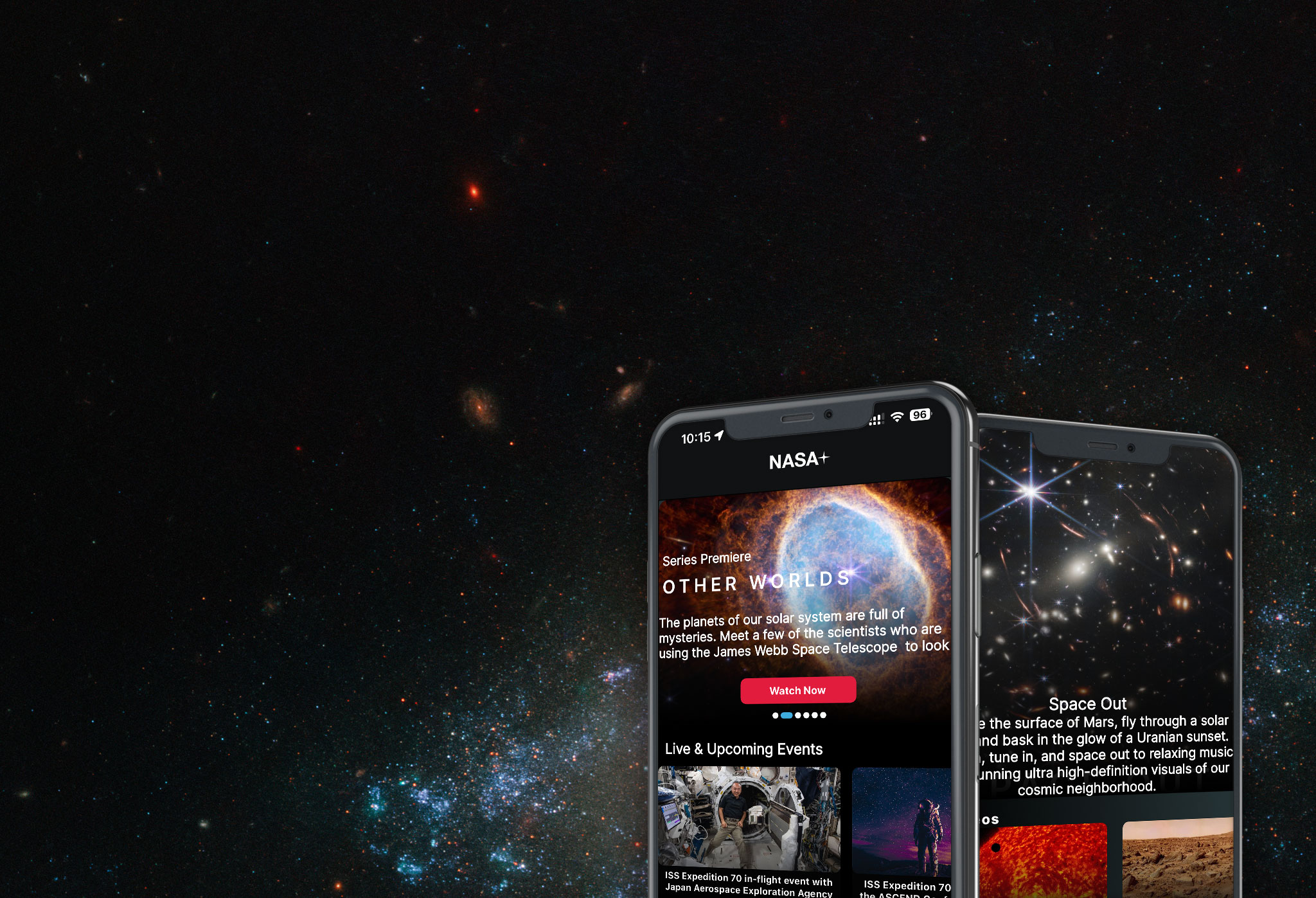
The redesigned NASA App unlocks access to the new NASA+ video streaming service, plus all the latest NASA images, news, mission information, podcasts, and interactive augmented reality experiences to explore — putting the universe at your fingertips!
The NASA app is available free of charge. Download for iOS, Android, Apple TV, Roku and Fire TV.
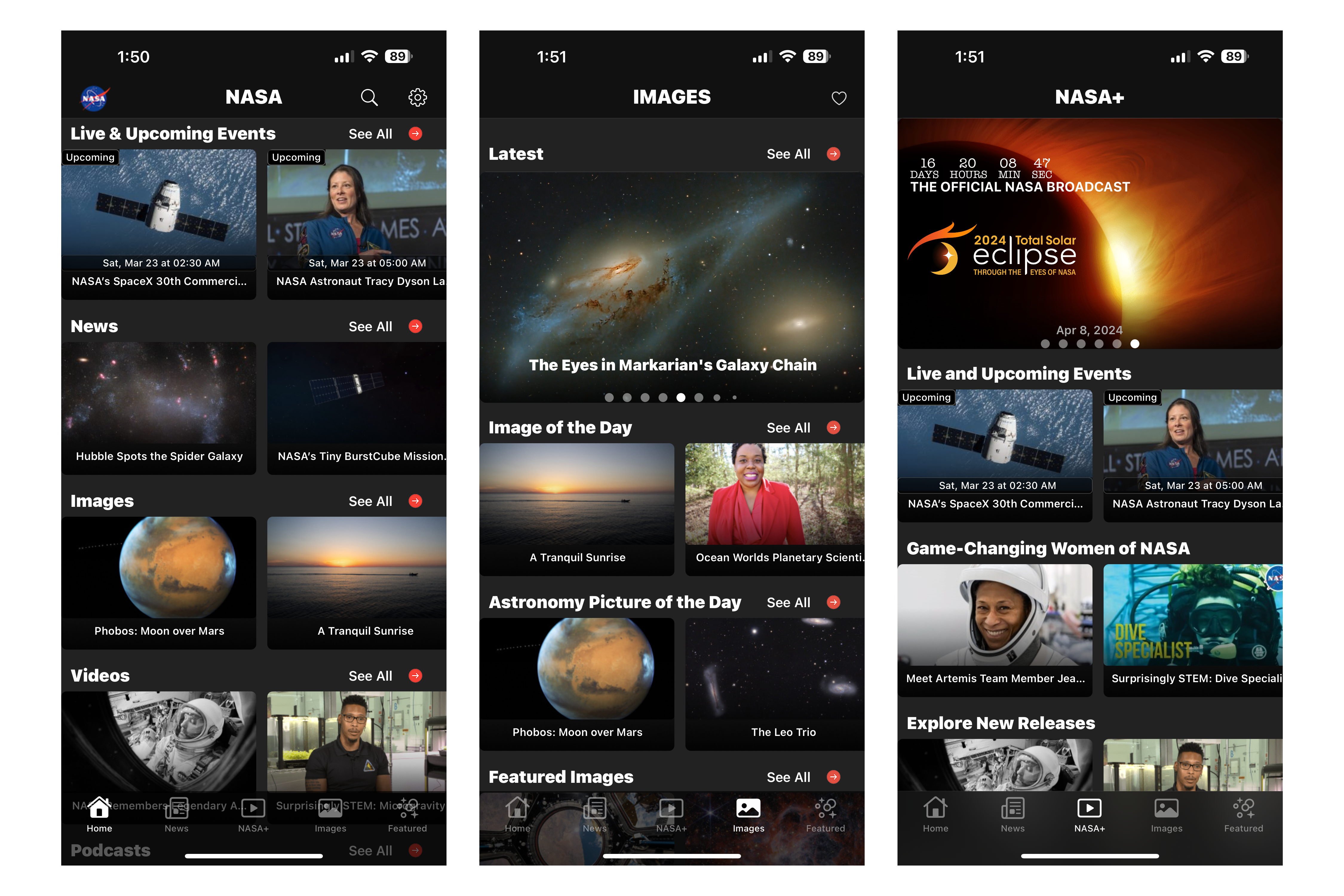

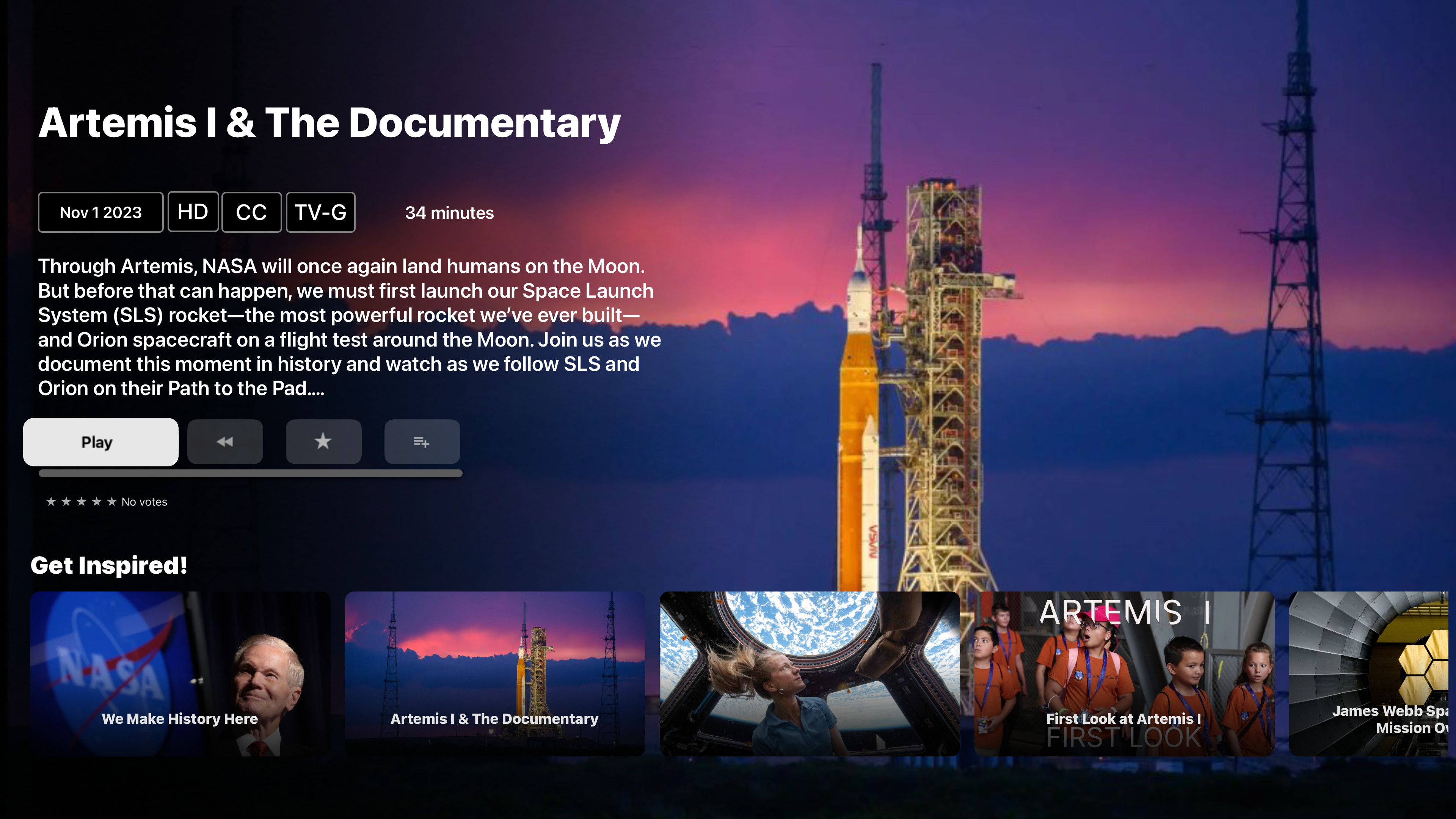
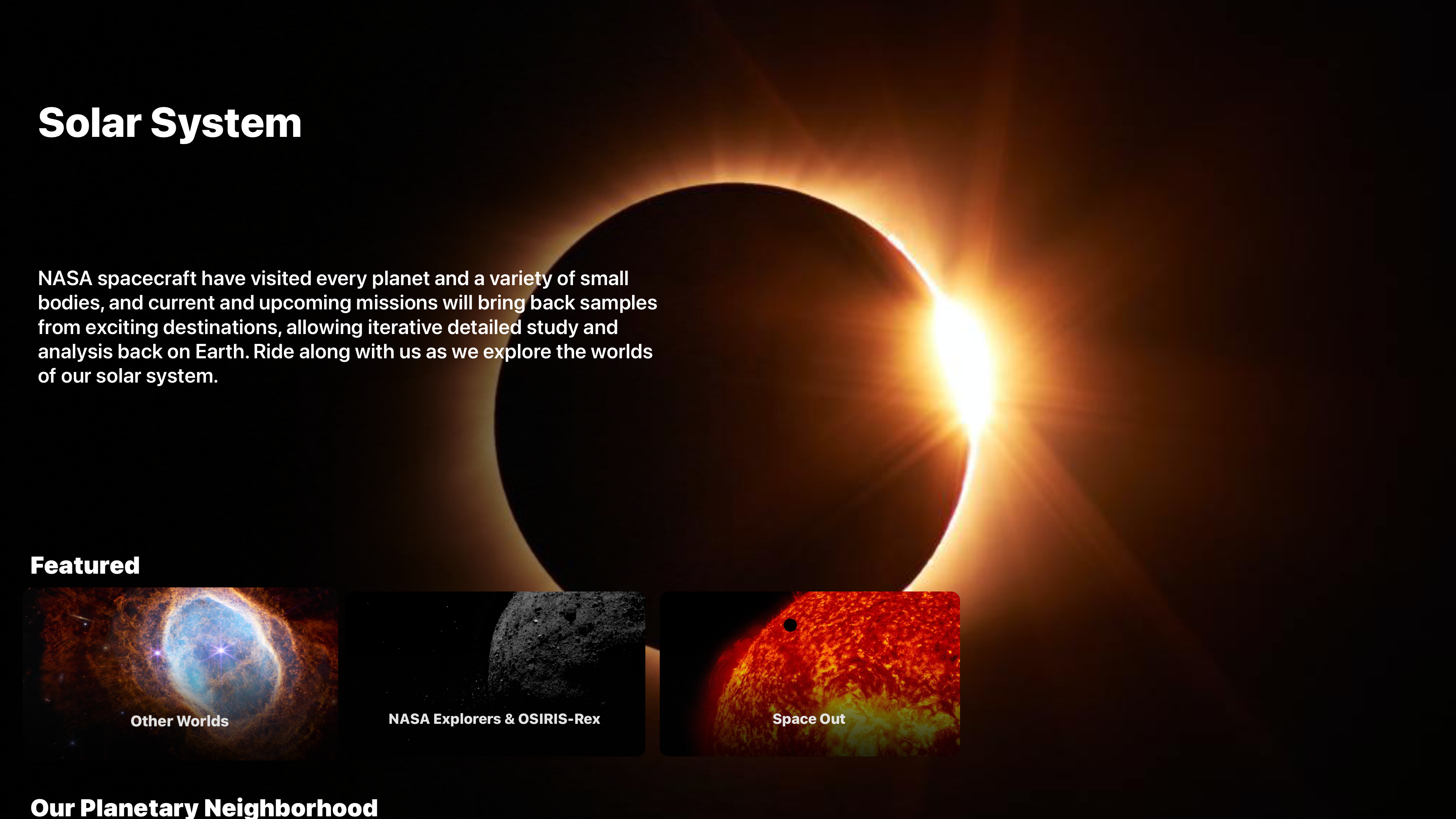
With the NASA App, you’ll be able to (some features are only on certain platforms):
- Explore with unlimited access to NASA+, featuring all of NASA’s official live coverage and original on-demand video series. No subscription required.
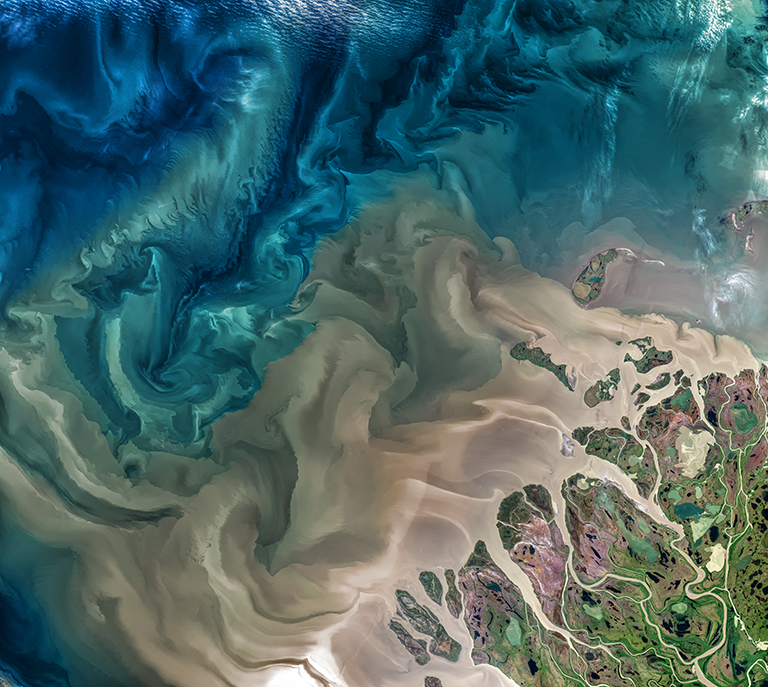
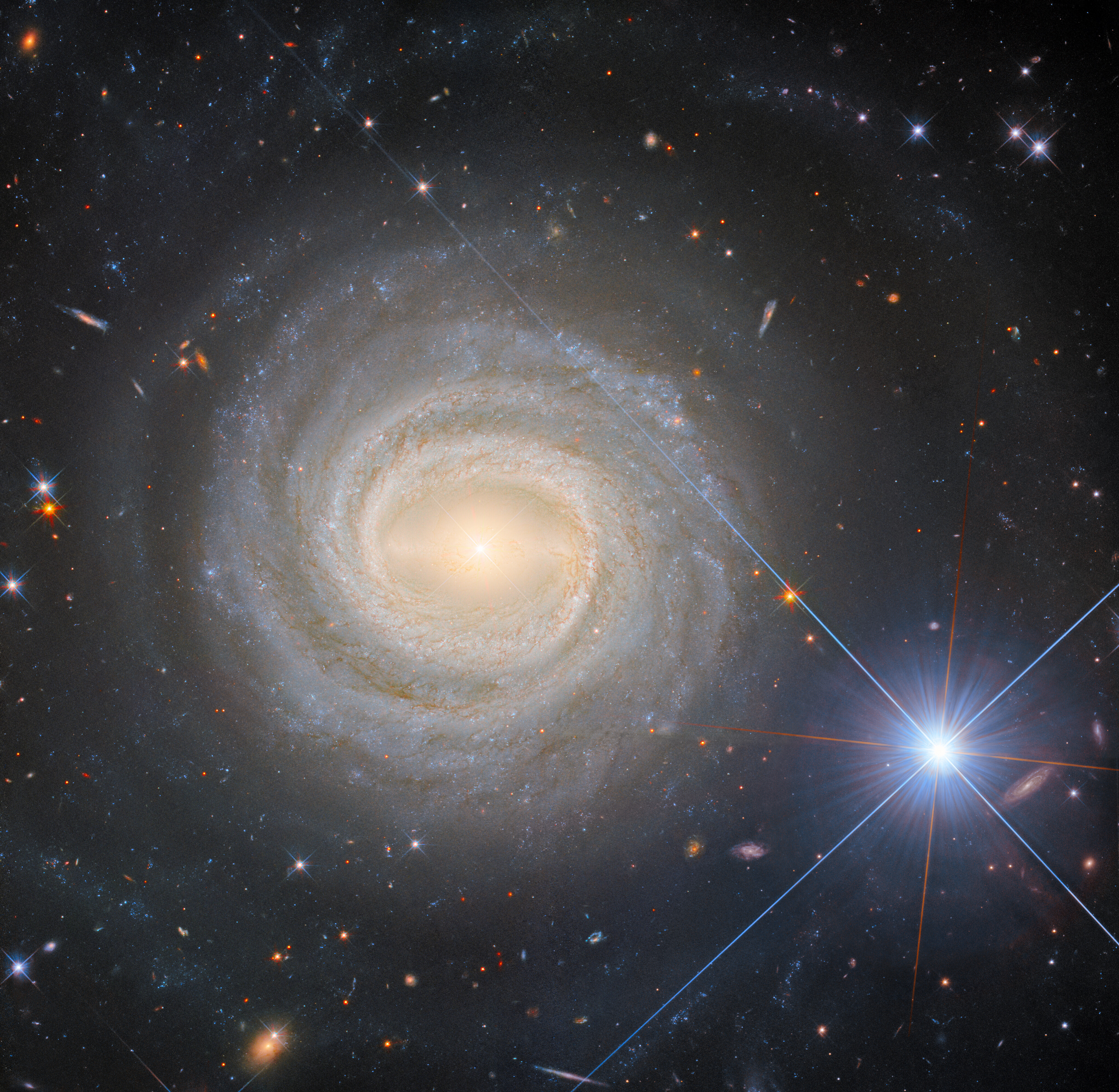
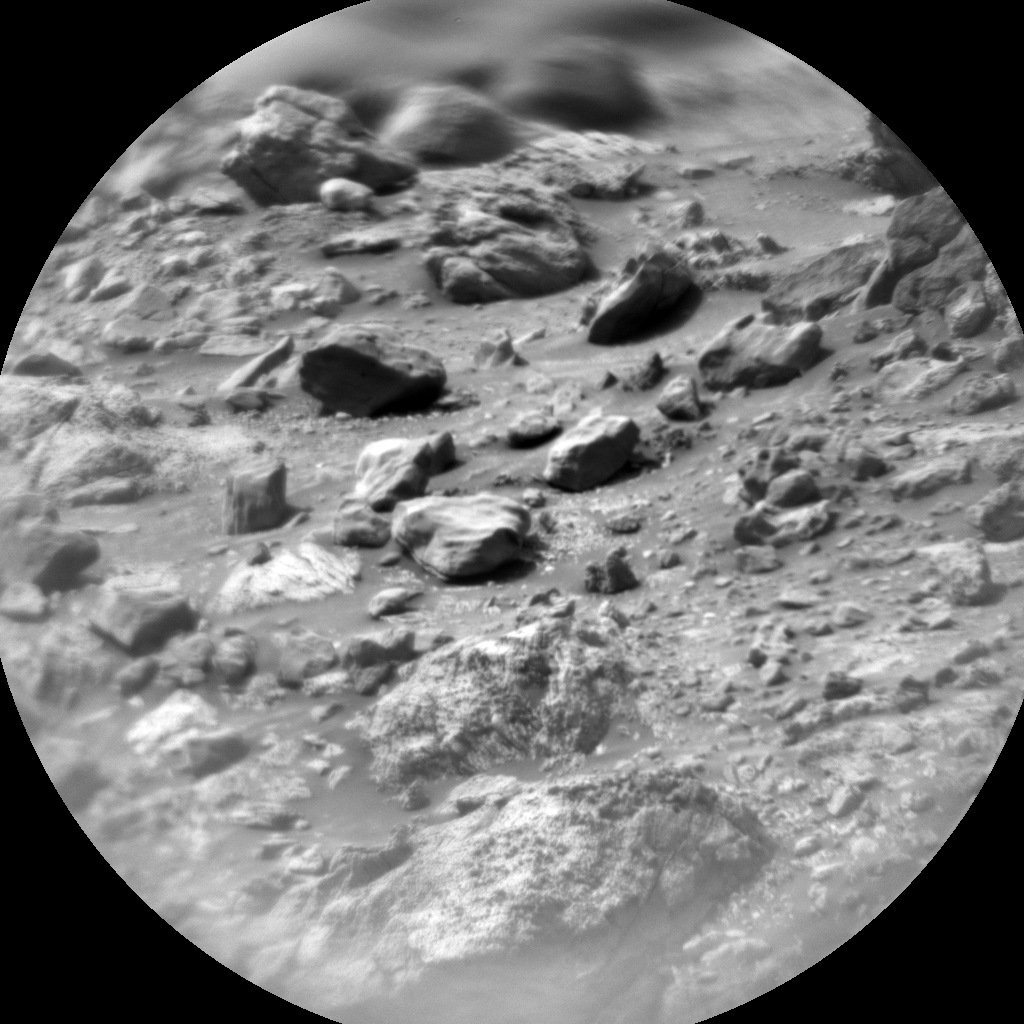
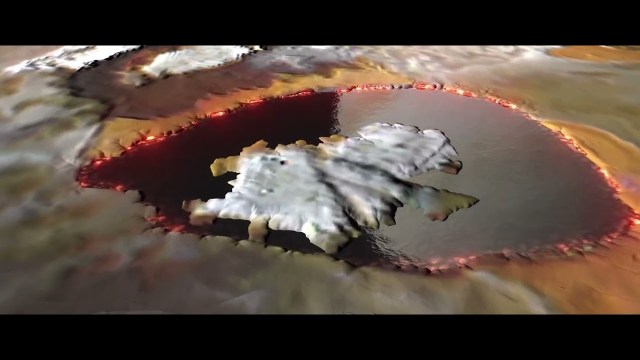
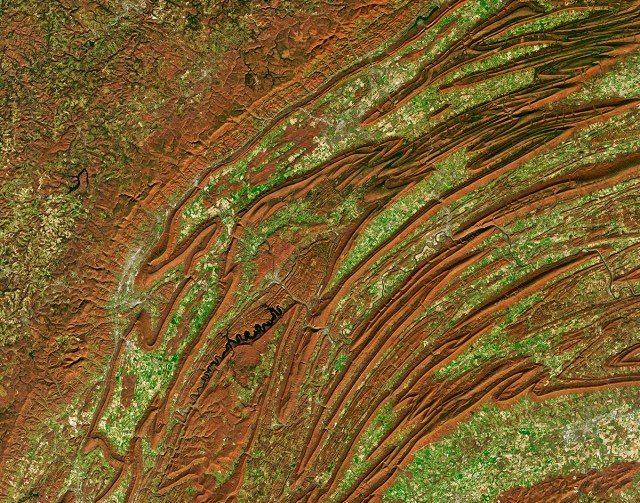
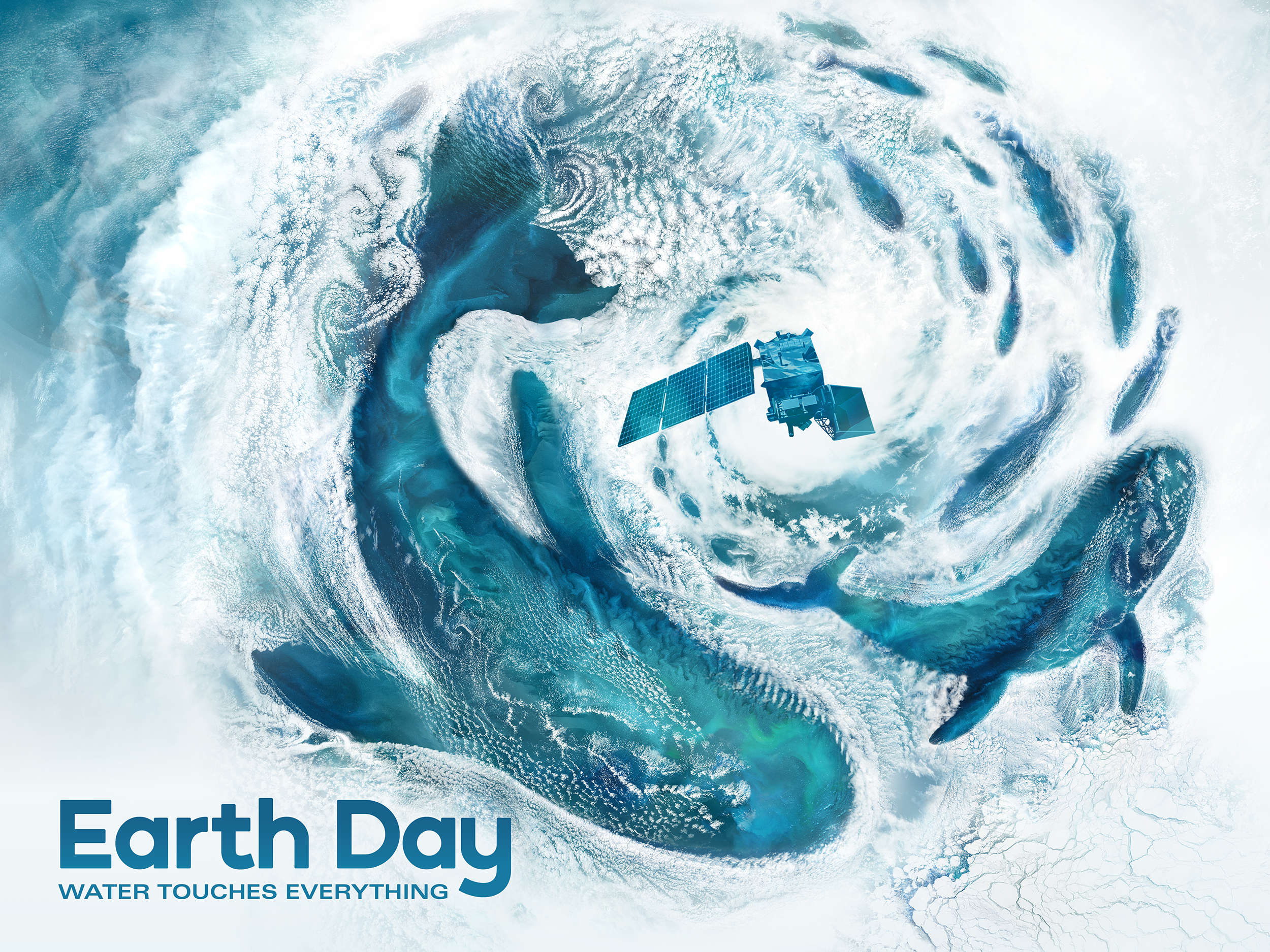
- Easily view over 21,000 of the latest NASA images.
- Rate images and explore all of the highest rated ones.
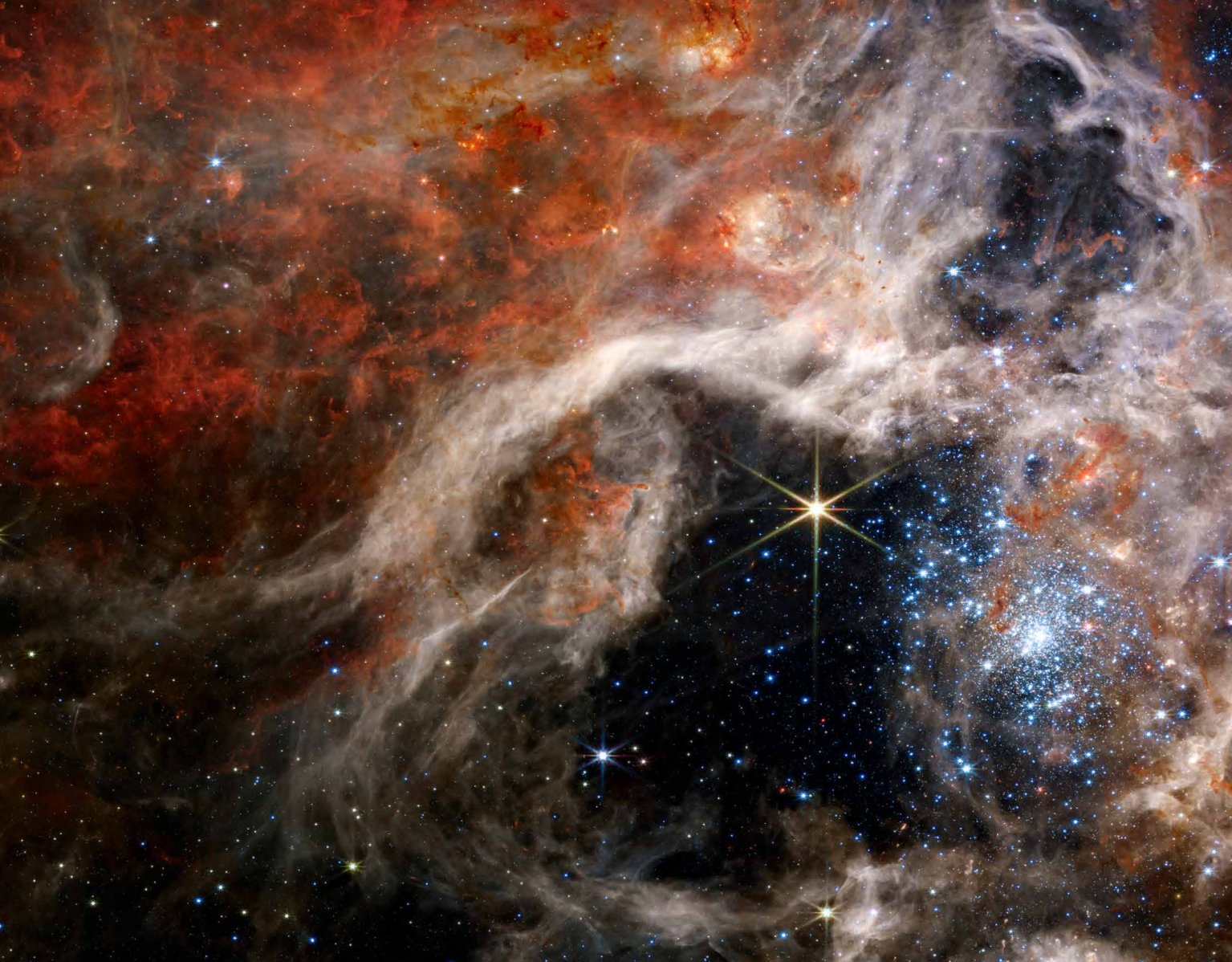
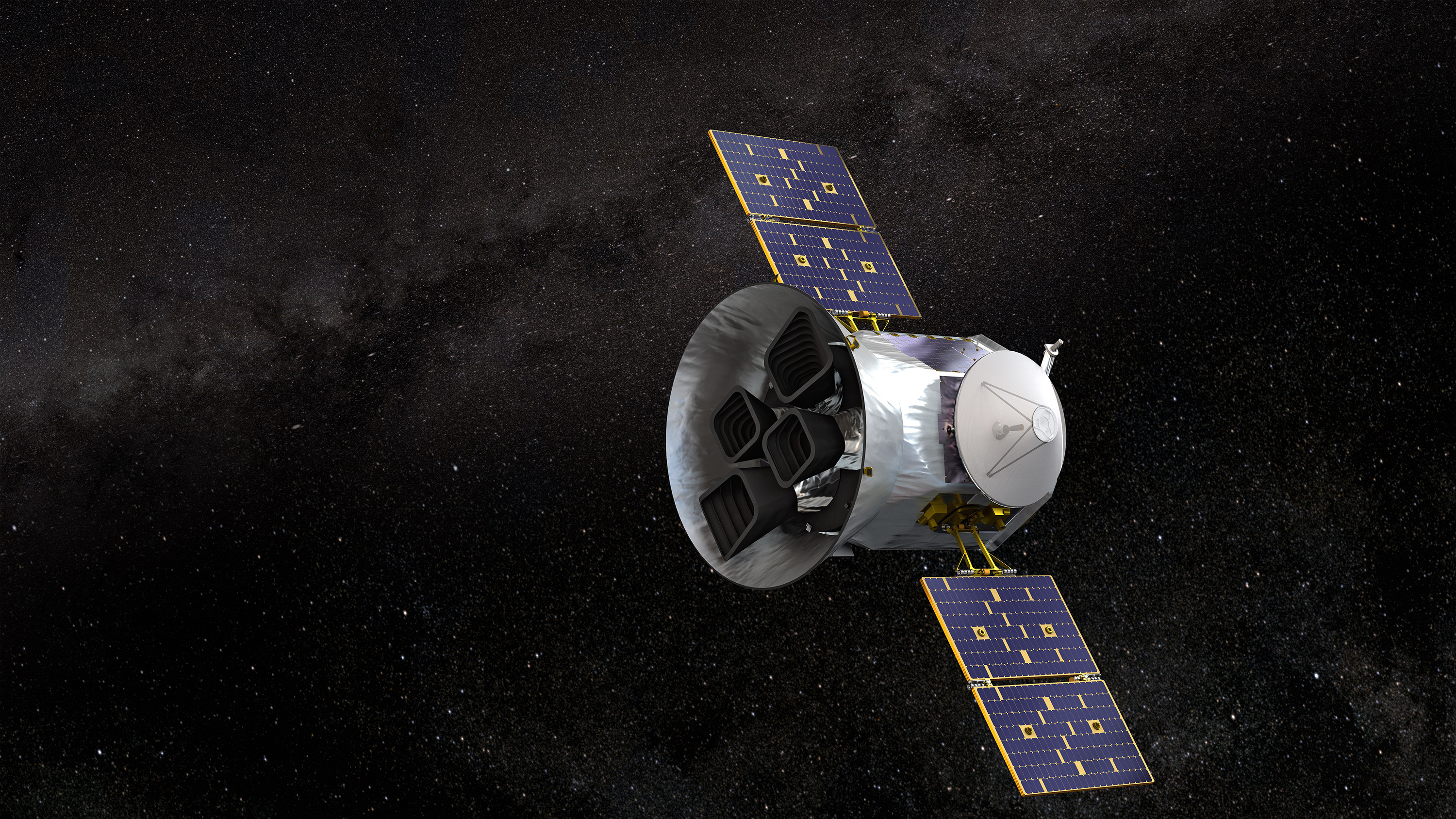
- Get the latest updates on Artemis, the James Webb Space Telescope, and other exciting NASA missions.
- Listen to our podcasts featuring astronauts and experts who take you on a tour of the galaxy without ever leaving Earth.
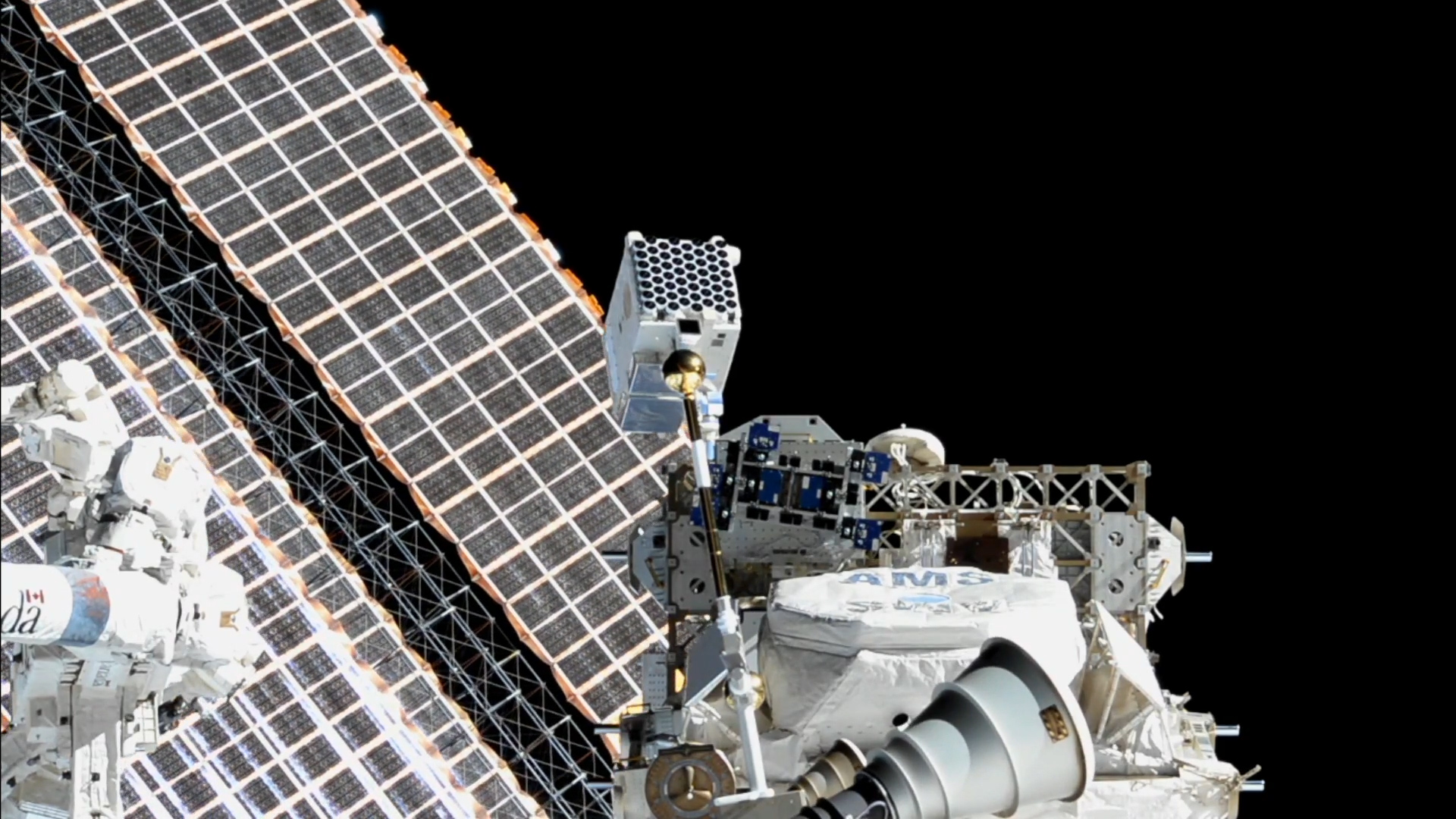
- Set an alert for when the International Space Station will fly over your location and use the Sky View feature to help you locate the station during the visible pass.
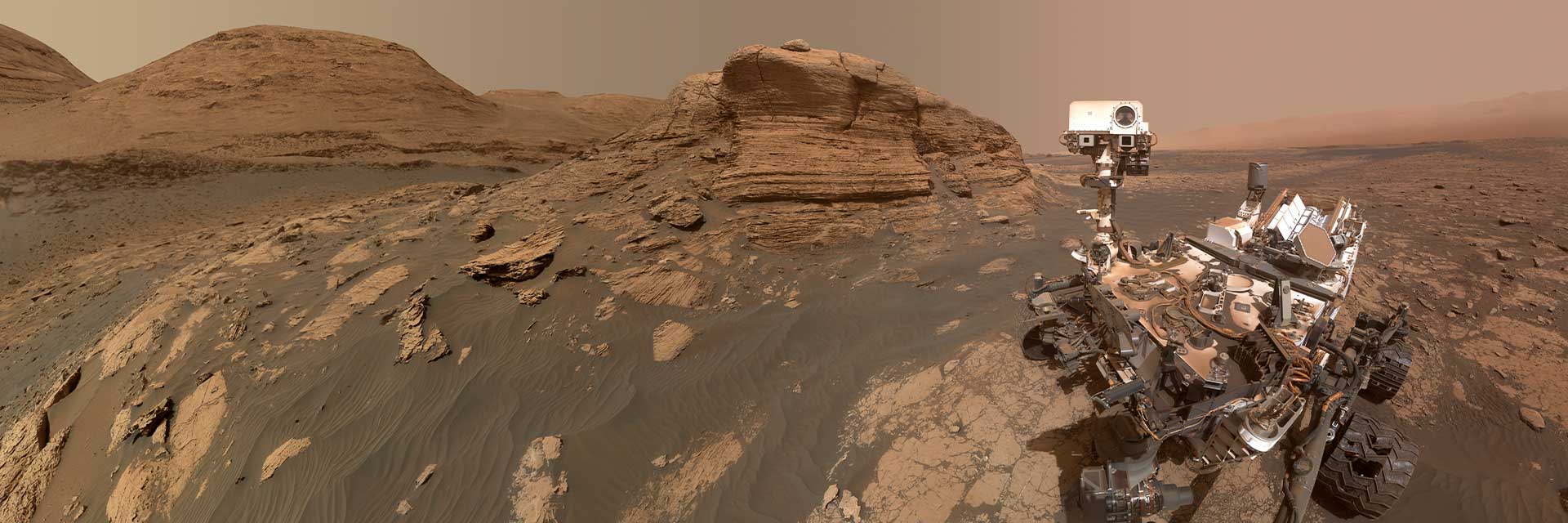
- Experience our rovers and rockets up close and personal with augmented reality.
- And so much more!
Download the updated NASA App now.



› Apple TV: Please go to the App Store on your Apple TV device to install.
› Amazon Fire TV: Please go to the Amazon Appstore on your Fire TV device to install.
› Roku: Please visit the Roku Channel Store on your device and add the NASA channel.